Source Build Guide
This guide explains how to build the Otto Robot firmware with ESP-IDF in VS Code and flash it to the ESP32-S3 board over USB.
If you only want to use the robot and do not need to modify its source code, use the online flasher on the Firmware Flashing page instead. No development environment is required.
Prerequisites
Prepare the following:
- VS Code or Cursor with Espressif's official ESP-IDF extension;
- ESP-IDF v6.0.2. The main branch requires a stable v6.0 or later release, with v6.0.2 preferred;
- Git and a USB Type-C cable that supports data transfer;
- An Otto Robot board with its battery installed.
Clone the source and open the project directory:
git clone https://github.com/txp666/xiaozhi-esp32.git
cd xiaozhi-esp32
code .
On first use, complete the ESP-IDF toolchain setup requested by the extension and confirm that the intended ESP-IDF version appears in the editor status bar.
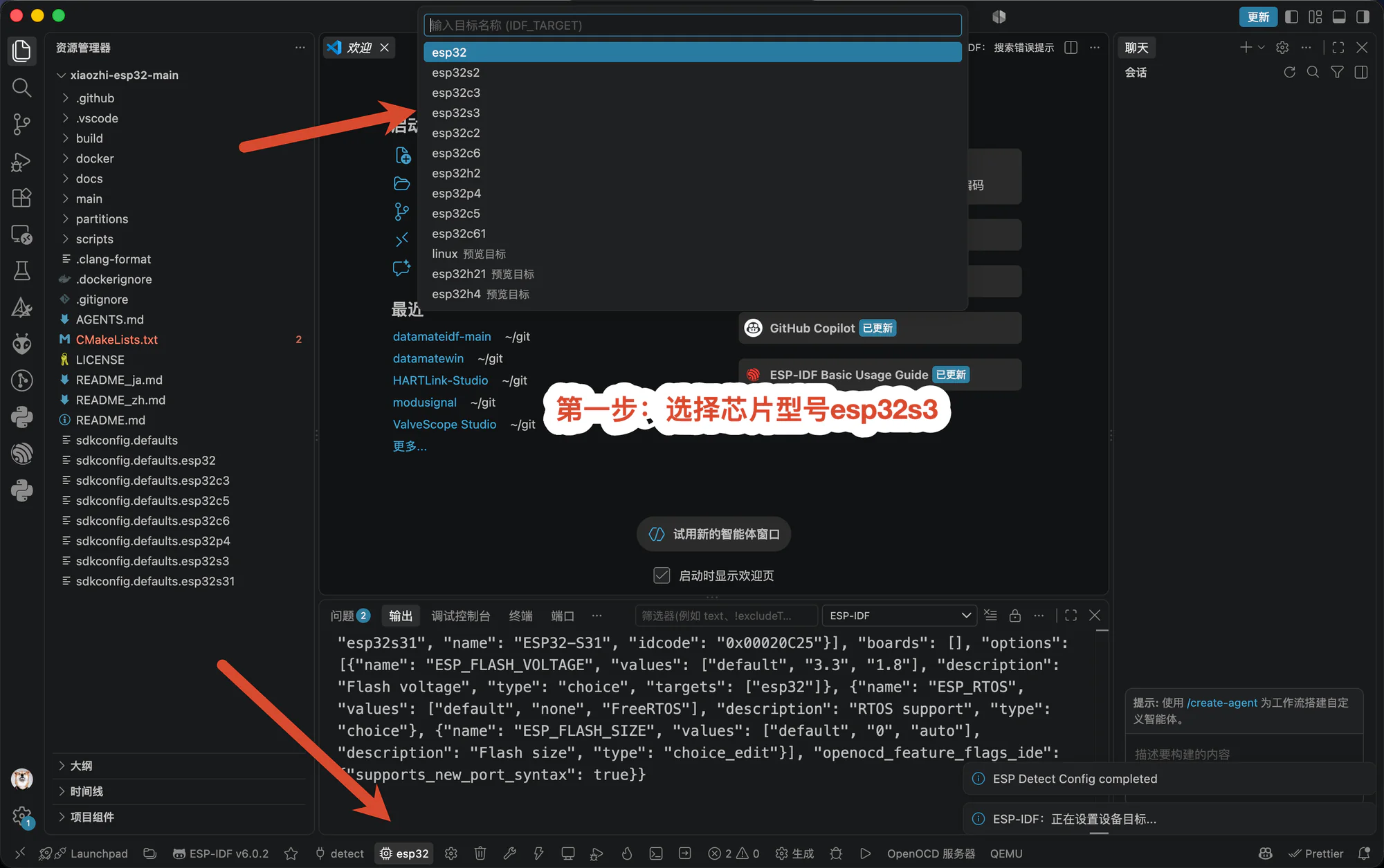
1. Select the ESP32-S3 target
Click the target name in the bottom status bar and select esp32s3 from the list.
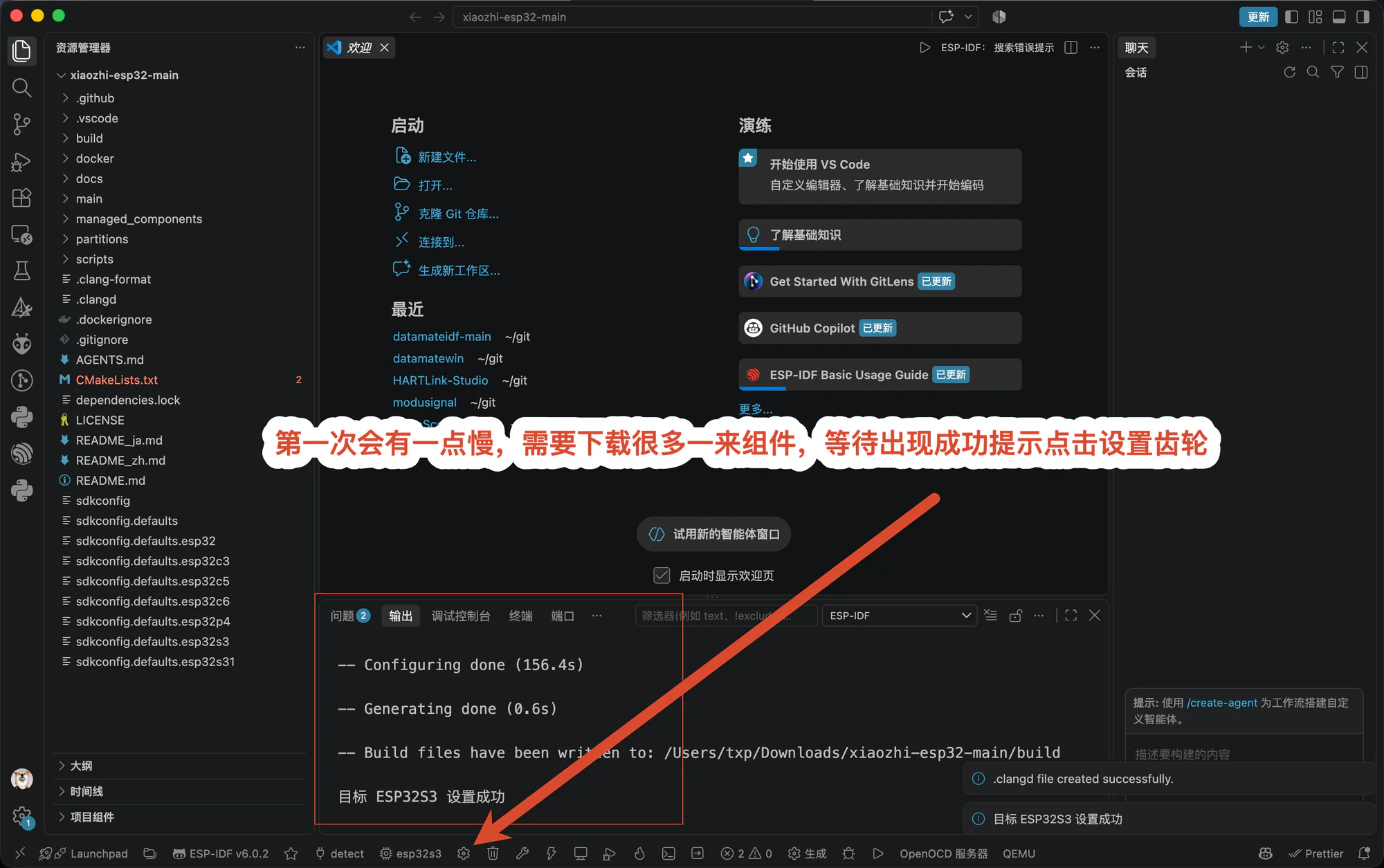
The first project configuration can take longer because ESP-IDF downloads dependencies and generates build files. Once configuration finishes, click the gear icon in the bottom bar to open the SDK Configuration Editor (menuconfig).
2. Select the Otto Robot board
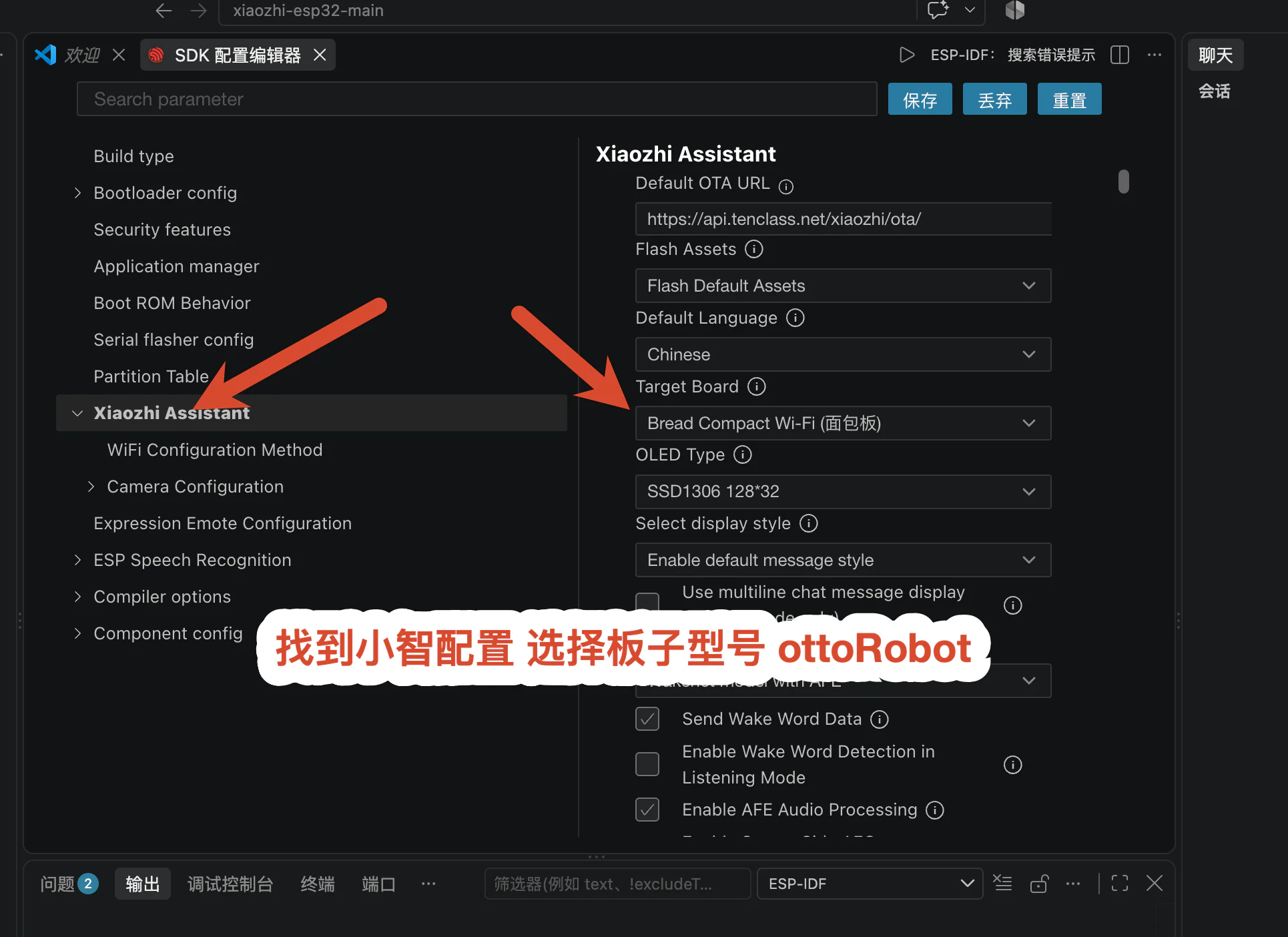
In the SDK Configuration Editor, expand Xiaozhi Assistant and locate Target Board.
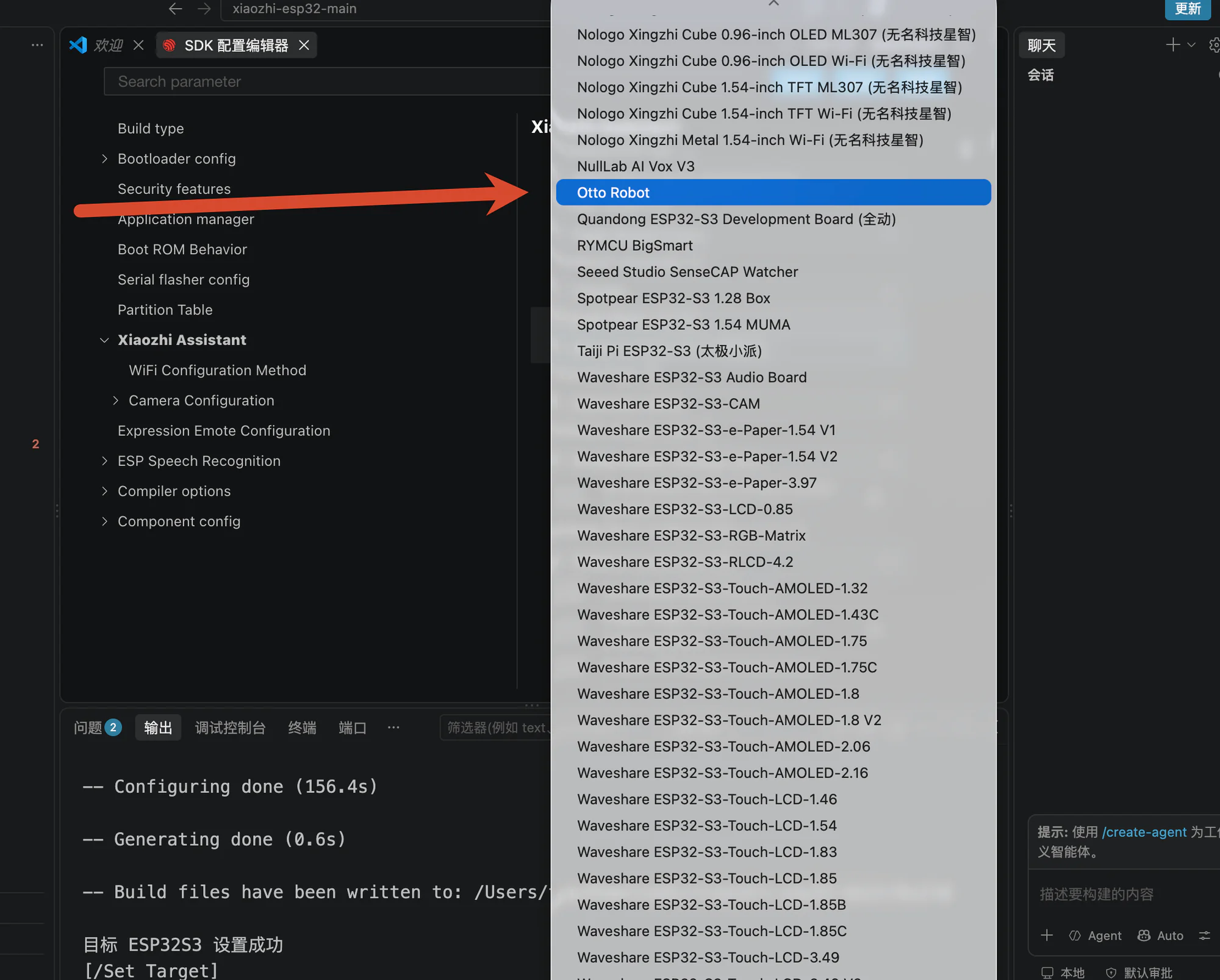
Open the board list and select Otto Robot. If it is missing, verify that esp32s3 was selected in step 1.
3. Enable WebSocket support
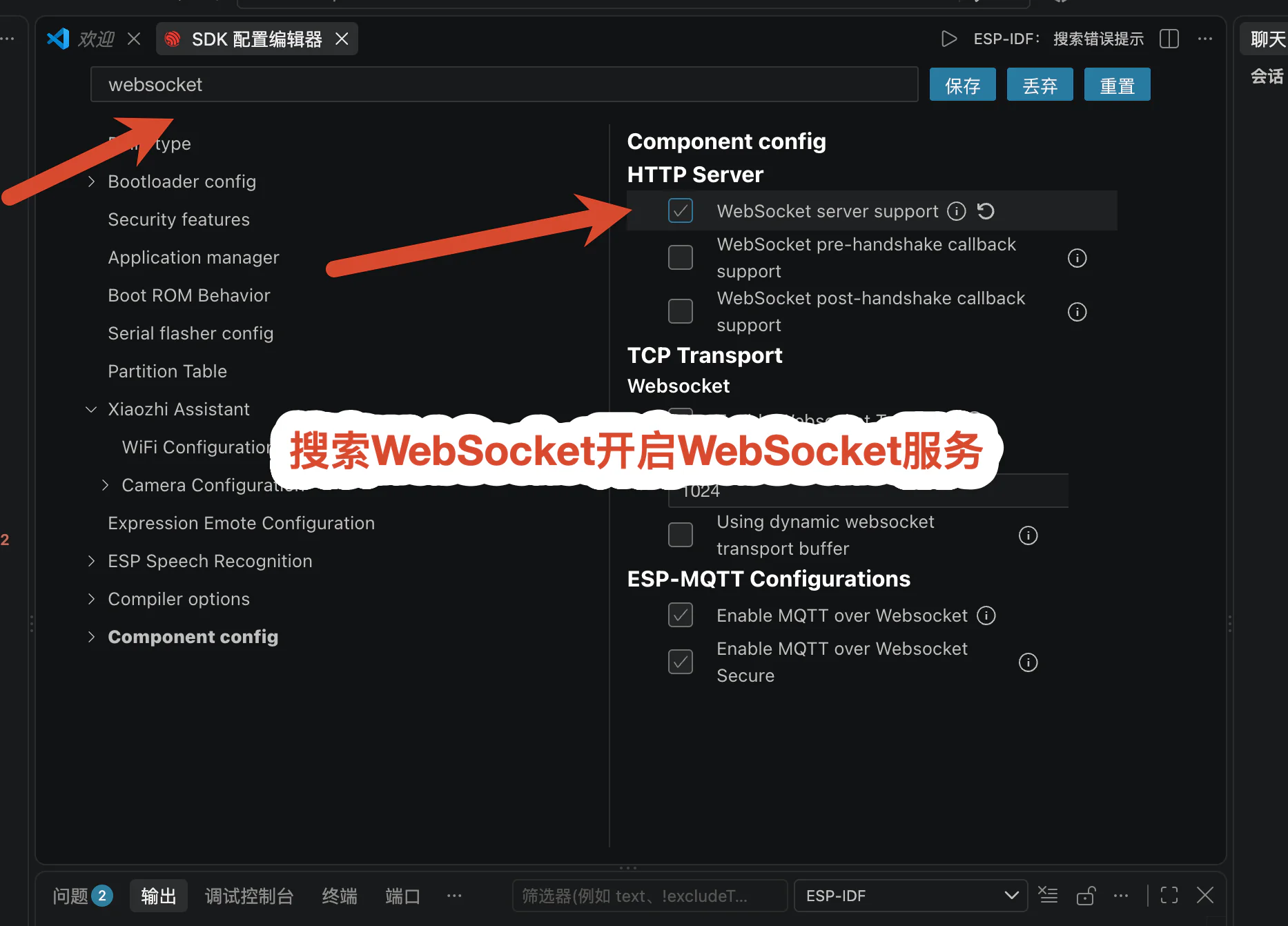
Search for websocket in the SDK Configuration Editor. Enable Component config → HTTP Server → WebSocket server support. Some source revisions enable it automatically; if it is already selected, leave it enabled.
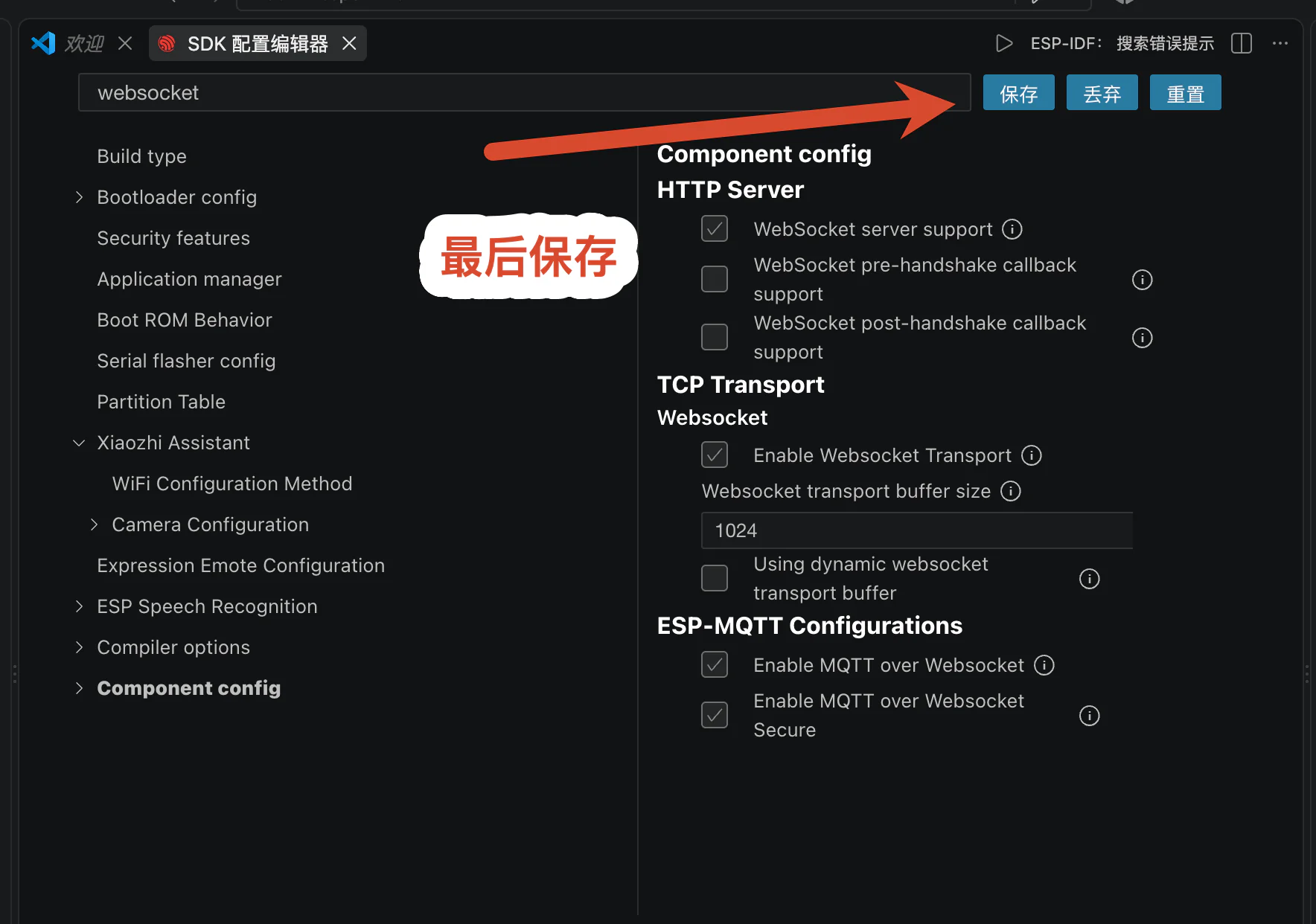
Click Save in the upper-right corner and wait for the configuration to be written.
4. Build the firmware
Click Build in the bottom bar. The first build takes longer because it may download additional components. Continue only after the terminal reports a successful build.
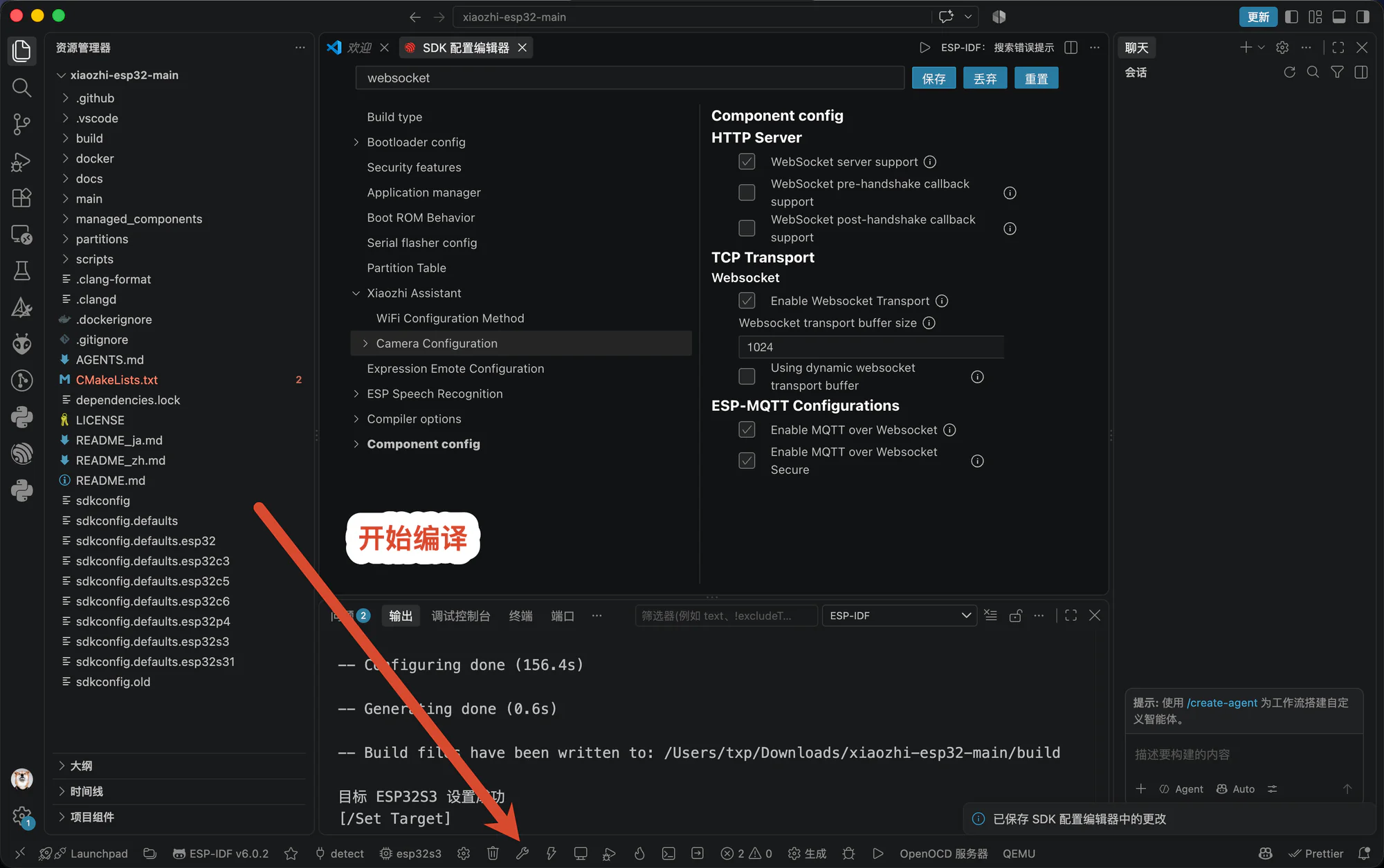
Build artifacts are written to build/. When flashing, the ESP-IDF extension writes the bootloader, partition table, application, and assets automatically; do not flash only xiaozhi.bin. To produce one distributable image, see the merge command on the Firmware Flashing page.
5. Connect the board and select its port
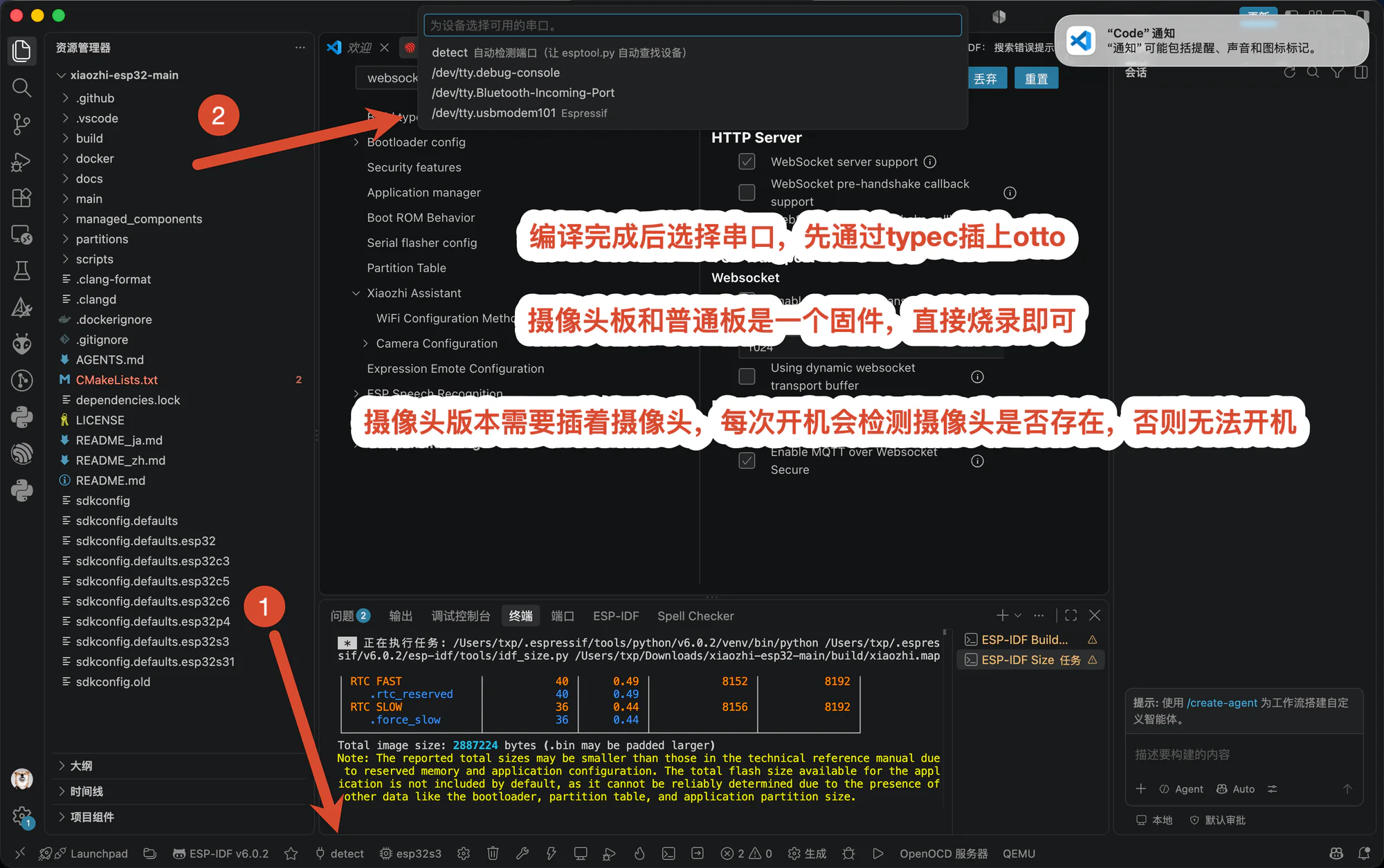
Make sure the battery is installed. Connect the Otto Robot to the computer with a USB Type-C data cable, then select the newly detected serial port in the ESP-IDF extension.
- For the first flash, or if the board cannot enter download mode automatically, hold BOOT while switching on the board and try again.
- The standard and camera models use the same firmware. Connect the camera before powering on a camera model because the firmware detects it during startup.
6. Flash and inspect the log
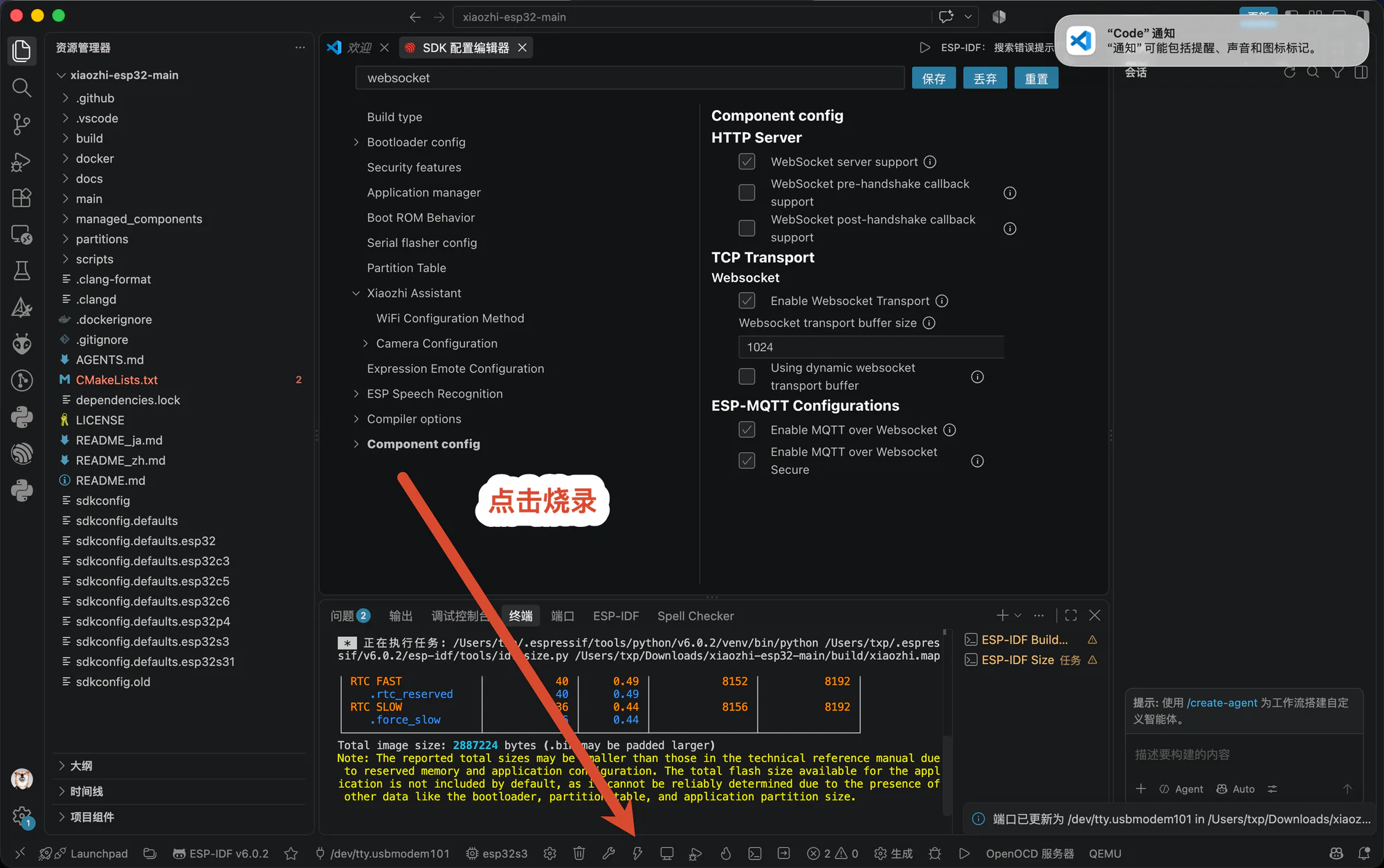
Click Flash in the bottom bar.
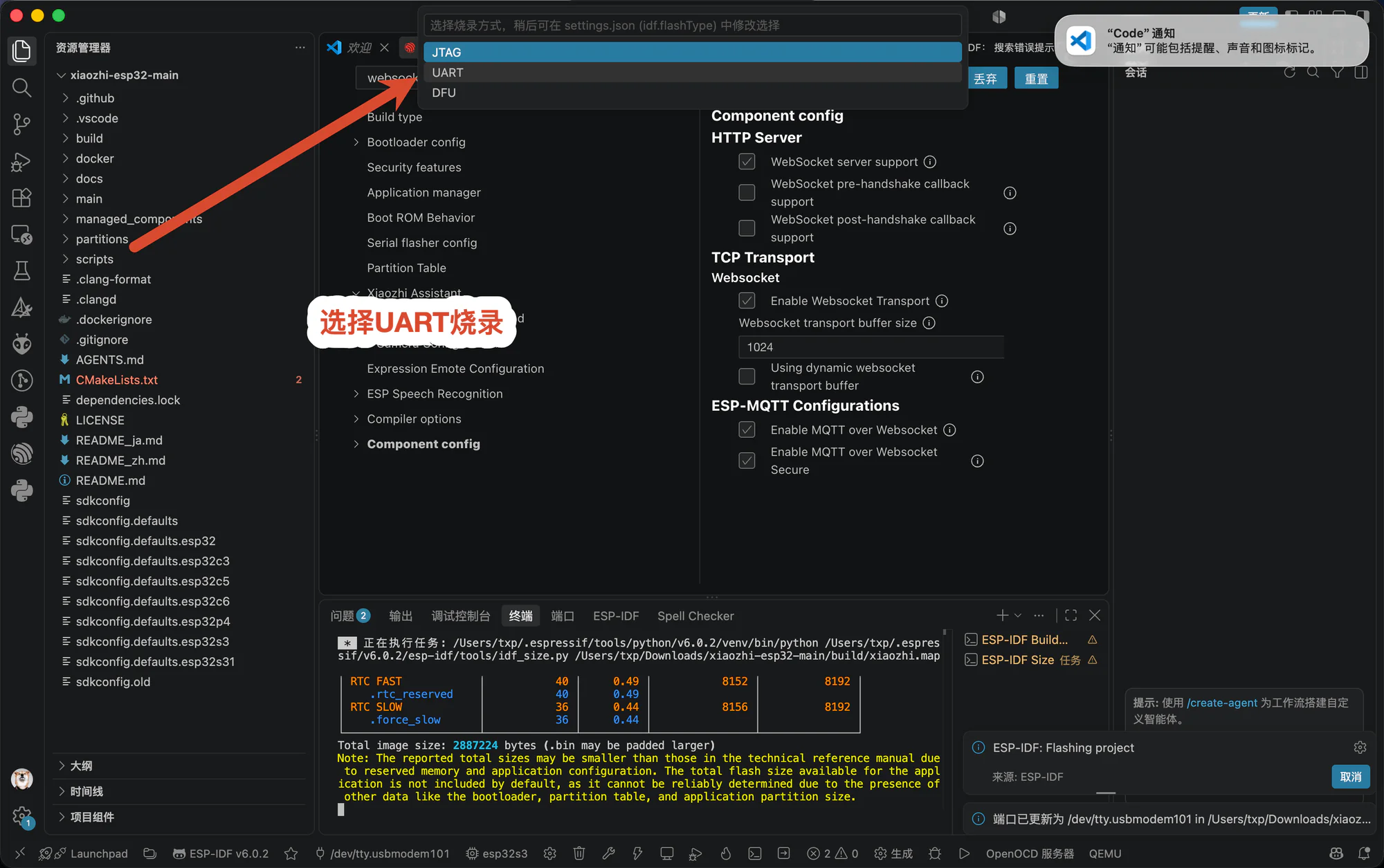
When prompted for a flash method, select UART. Wait until the terminal reports completion. Open the ESP-IDF serial monitor if you need to inspect its startup log.
Troubleshooting
Otto Robot is not listed
Confirm that the target is esp32s3, then close and reopen the SDK Configuration Editor.
The build is stuck downloading components
The first build requires network access to download dependencies. Check the connection and retry, and verify that the ESP-IDF extension uses a stable v6.0 or later release.
No serial port appears
Try a known data-capable USB cable and another USB port. For the first flash, hold BOOT while switching on the board. Windows users should also verify that the serial driver is installed.
The board does not boot after flashing
Power it off, check the camera and other ribbon cables, then power it on again and inspect the serial log. To restore a released firmware, use the latest image on the Firmware Flashing page.